You troubleshoot digital signage by identifying the problem (such as blank screens, content not updating, lag, or connectivity issues), testing the device and software, and applying fixes step by step until your display is working again.
Troubleshooting involves checking power and internet connections, verifying your content management system (CMS) settings, and confirming that playlists are assigned correctly.
Here’s a detailed step-by-step process to troubleshoot your digital signage.
Table Of Contents
- Step 1: Check Power and Hardware Connections
- Step 2: Confirm Internet Connectivity
- Step 3: Verify the CMS Dashboard
- Step 4: Check Content File Types and Sizes
- Step 5: Restart the Device and App
- Step 6: Update the Software and Firmware
- Step 7: Review Scheduling and Time Zone Settings
- Step 8: Test Live Feeds and Web Pages
- Step 9: Rotate or Reset the Screen Orientation
- Step 10: Contact Support if Problems Persist
- How to Use This Cheat Sheet
- Final Thoughts
Step 1: Check Power and Hardware Connections

The first step in any troubleshooting process is ensuring the physical setup is correct.
- Make sure your screen is powered on and not in sleep mode.
- Confirm that the media player (Fire Stick, Android TV box, Raspberry Pi, etc.) is securely connected to the HDMI port.
- Check that the power adapter for the device is plugged in and working.
- Try unplugging and reconnecting the HDMI cable or switching to another port.
Why this matters: Many blank screen issues come down to loose cables or power interruptions rather than software failures.
Example: A retail store’s digital menu board went dark during lunch hours. The issue wasn’t the software - the Fire Stick’s USB power source was plugged into a TV port that switched off automatically. Changing to a wall adapter solved the problem instantly.
Step 2: Confirm Internet Connectivity

Digital signage relies on the internet to sync new content. If your device is offline, updates won’t appear.
- Open the device’s settings menu and check Wi-Fi or Ethernet status.
- Restart the router if no connection is detected.
- If Wi-Fi is unstable, try connecting the device via Ethernet.
- Test internet speed - signage needs at least 5 Mbps download for smooth syncing.
Best Practice: Assign devices to a dedicated network or use wired connections in high-traffic areas like malls or airports.
Example: A school complained that daily announcements weren’t updating. The culprit was Wi-Fi interference during peak student hours. Switching to Ethernet fixed syncing issues permanently.
Step 3: Verify the CMS Dashboard

Sometimes the problem isn’t the device but the configuration in your CMS.
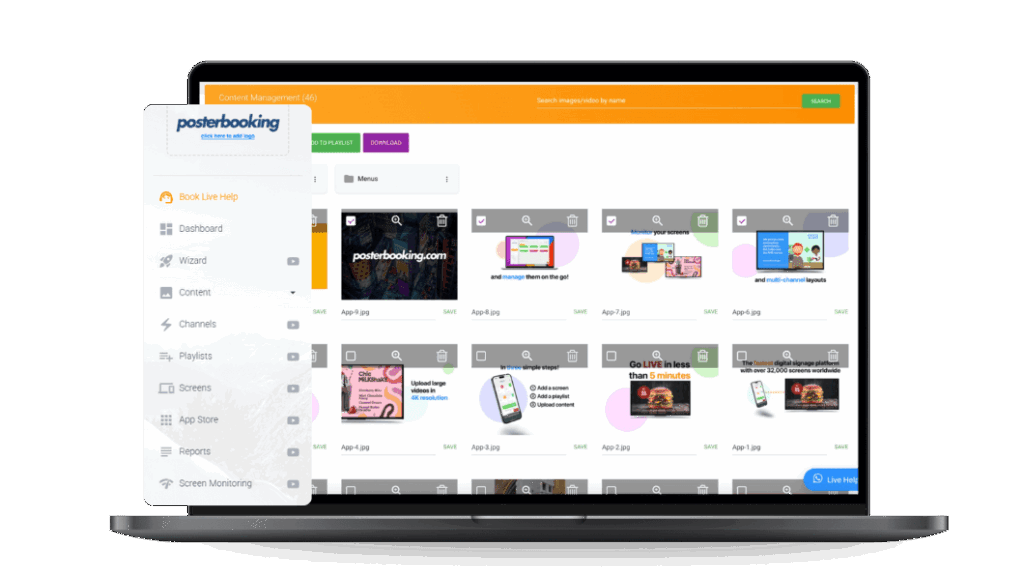
- Log in to your signage dashboard (e.g., PosterBooking).
- Check if the screen shows as online or offline.
- Confirm that a playlist is assigned to the screen.
- Check that the playlist has active content (images, videos, or feeds).
- Reassign the playlist and click Save.
Why this matters: A device may be connected but will show nothing if no playlist is attached.
Example: A gym owner thought their signage app had crashed. In reality, they had deleted all files from the assigned playlist, leaving the display blank. Re-adding content solved the issue.
Step 4: Check Content File Types and Sizes

Not all file formats or sizes work well with digital signage.
- Verify that your images are in JPG or PNG format.
- Check that your videos are in MP4 format with H.264 codec.
- Reduce video size below 500 MB to prevent playback lag.
- Test files locally on your laptop before uploading to signage.
Best Practice: Optimize all files to match your screen resolution (1920×1080 for HD, 3840×2160 for 4K). Oversized files may cause stuttering or blank screens.
Example: A restaurant uploaded a 4K video ad that was over 2 GB. The Fire Stick struggled to process it, leading to freezes. Compressing the video fixed the playback issue.
Step 5: Restart the Device and App

When in doubt, restart. This clears temporary errors.
- Unplug the media player from power for 10 seconds.
- Restart the TV or screen.
- Reconnect the device and relaunch the signage app.
Why this works: Temporary memory issues or frozen apps often resolve with a simple restart.
Example: A retail store’s signage froze on a single slide. A quick restart brought the playlist back to normal within minutes.
Step 6: Update the Software and Firmware

Running outdated software can lead to compatibility issues.
- Check for app updates in your device’s app store.
- Update the digital signage app (PosterBooking releases regular updates).
- Update the device firmware (Fire Stick, Android box, Raspberry Pi OS).
Best Practice: Enable automatic updates to minimize downtime.
Example: A hotel noticed that their signage no longer displayed embedded YouTube links. Updating the app restored compatibility with modern video embeds.
Step 7: Review Scheduling and Time Zone Settings

If your content is not showing at the right time, the problem may be scheduling.
- Go to your CMS and open the screen settings.
- Confirm that the correct time zone is applied.
- Check if playlists are scheduled only for certain hours.
- Adjust scheduling if needed and save changes.
Example: A café’s breakfast menu wasn’t appearing in the morning. The time zone was set to GMT while the café was in EST, so the schedule was off by 5 hours. Updating the time zone fixed the problem.
Step 8: Test Live Feeds and Web Pages

If you are displaying live content (like weather, calendars, or dashboards) and it’s not updating:
- Open the same URL in a browser on your laptop.
- Check if the feed is public (no login required).
- Test if the website resizes properly on different screens.
- Replace the feed with a static image temporarily to confirm the issue.
Example: A business tried to display a private Google Sheet link, but only blank screens appeared. Changing the sharing permissions to “Anyone with the link” solved the issue.
Step 9: Rotate or Reset the Screen Orientation

Sometimes content looks cut off or sideways.
- In your CMS, select the affected screen.
- Click Edit and adjust rotation (0°, 90°, 180°, 270°).
- Save and preview.
Example: A school had set up portrait-mode displays in hallways. Initially, content looked stretched. Rotating the screen to 90° fixed the formatting.
Step 10: Contact Support if Problems Persist

If none of the above steps work, reach out to your signage provider.
- Collect details such as device type, error messages, and screenshots.
- Submit a ticket through the support portal.
- Most providers like PosterBooking reply within 24 hours.
Best Practice: Keep logs of recurring issues. This helps support diagnose problems faster.
Digital Signage Troubleshooting Cheat Sheet (2026)
| Issue | Likely Cause | Fix |
|---|---|---|
| Blank screen | Device not powered, HDMI cable loose, or screen in sleep mode | Check power supply, reconnect HDMI, and ensure the TV is set to the correct HDMI input |
| Screen offline in CMS | Device disconnected from Wi-Fi or Ethernet | Reconnect to Wi-Fi, restart router, or use wired Ethernet |
| Content not updating | Screen offline or playlist not assigned | Confirm the screen is online in CMS and assign the correct playlist |
| Video not playing | Unsupported format or file too large | Use MP4 with H.264 codec, compress videos under 500 MB |
| Images blurry or cut off | Low resolution or wrong orientation | Upload HD/4K resolution files and adjust rotation in CMS |
| Wrong content schedule | Incorrect time zone or playlist settings | Update the screen’s time zone and review scheduling rules |
| Live feed not loading | URL private, feed not responsive | Make feed public (Anyone with link) and test URL on a laptop first |
| Laggy or slow performance | Weak Wi-Fi or oversized files | Optimize files, use Ethernet for stable connectivity |
| App freezing or stuck | Temporary memory issue | Restart device and relaunch signage app |
| Repeated errors | Outdated software or firmware | Update the signage app and device firmware to latest versions |
How to Use This Cheat Sheet
- Always start with the hardware basics: power, HDMI, and internet.
- Then move to CMS checks: playlists, content, and time zones.
- Finally, test file formats and software updates.
This systematic approach will solve 90 percent of common signage issues without needing advanced support. If you need a deeper breakdown of recurring issues, this detailed guide on 25 common digital signage problems and their fixes walks through practical solutions that apply to most screens and software setups.
Final Thoughts
You troubleshoot digital signage by checking hardware, internet, CMS settings, file compatibility, and schedules. Most problems come down to simple issues like loose cables, incorrect time zones, or unsupported file types. Restarting devices, updating software, and testing content step by step usually resolves them quickly.
In 2026, PosterBooking remains the best free digital signage software for managing and troubleshooting screens. With its clear dashboard, real-time updates, and support for unlimited uploads, it makes troubleshooting easier because you can adjust, test, and reassign content instantly from anywhere.
By following these steps, you’ll minimize downtime and keep your signage network running smoothly.
Join PosterBooking and START today!
Frequently Asked Questions
How do I troubleshoot digital signage?
You troubleshoot digital signage by checking power and hardware connections, confirming internet connectivity, and verifying your CMS dashboard settings. You should also check content file types, restart the device, and ensure the software and firmware are fully updated.
Why is my digital signage content not updating?
Digital signage requires at least 5 Mbps download speed for smooth content syncing. If your Wi-Fi is unstable or slow, try connecting the media player via Ethernet or assigning it to a dedicated network to prevent updates from failing.
How much does PosterBooking cost?
PosterBooking is free for up to 10 screens, though these screens show a watermark after a three month trial. Paid plans start at $6.49 per screen per month for 11 or more screens, or you can choose the Home Basic plan at $52 per month for 10 screens without watermarks.
What devices work with PosterBooking?
PosterBooking is compatible with a variety of hardware including Fire TV Stick, Amazon Signage Stick, and Android TV. It also works on Windows, Chromebox, Raspberry Pi, and Android displays.
What is the best video format for digital signage?
Video files should be in MP4 format using the H.264 codec to ensure compatibility. To prevent playback lag or freezing, you should reduce the video file size to below 500 MB.
Join PosterBooking for FREE
Get a free 1:1 PosterBooking demo and see how to unlock 10 free screens with zero setup headaches.