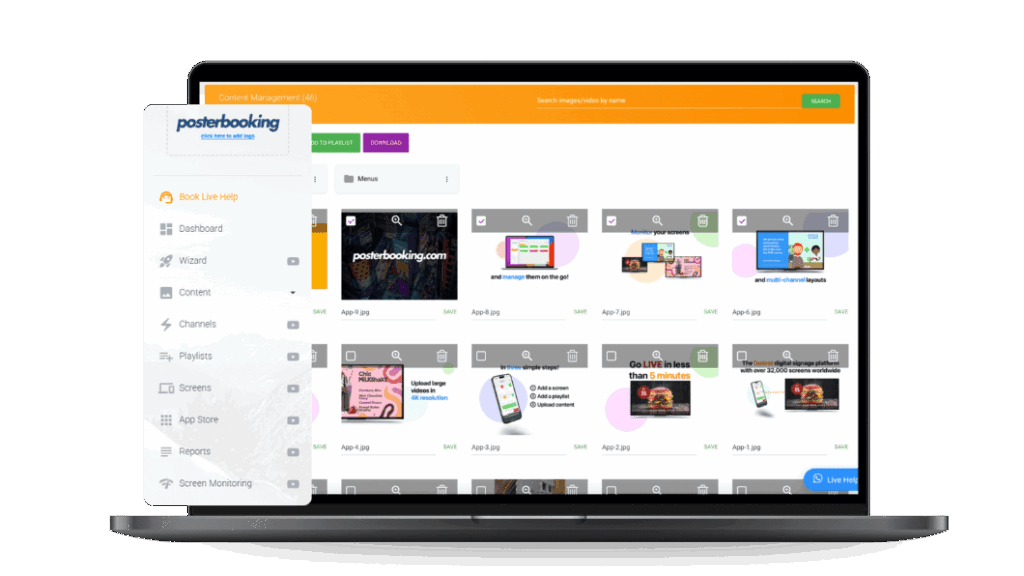
An Amazon Fire TV unit functions as a budget-friendly, app-based signage player suitable for individual screens or small networks when content demands are modest and connectivity is reliable. it is not the right choice for strict kiosk lockdowns, complex HTML dashboards at scale, or harsh 24/7 environments where commercial players are safer. The viability hinges on selecting the appropriate model (Stick 4K/4K Max or Cube), adding Ethernet, disabling sleep/screensaver behavior, and choosing a CMS with a native Fire TV app and offline caching.
Table Of Contents
- What Is an Amazon Fire TV Stick in the Context of Digital Signage?
- Why Would a Fire TV Stick Be Picked Over a Dedicated Signage Player?
- Which Amazon Fire TV Models Are Suitable for Signage?
- When Should 1080p Be Chosen vs 4K/4K Max/Cube?
- How to Set Up a Fire TV Stick as a Signage Player Step-By-Step?
- What Is the Exact Provisioning Flow on Day One?
- Which Digital Signage Software Works Best on Fire TV and How to Choose?
- What Is the Best Fire TV Signage Software for Single-Screen or Startups?
- What Is the Best Fire TV Signage Software for Schools And Nonprofits?
- What Is the Best Fire TV Signage Software for QSR Menus And Promos?
- What Is the Best Fire TV Signage Software for Dashboards And KPI TVs?
- What Is the Best Fire TV Signage Software for Multi-Location Chains?
- How to Set Up and Manage Amazon Fire Stick for Digital Signage?
- How to Install Digital Signage Apps on Fire Stick?
- How to Configure Fire Stick for Continuous Playback?
- How to Schedule Content on Amazon Fire Stick Digital Signage Apps?
- How to Update Content Remotely on Fire Stick Devices?
- How to Manage Multiple Fire Stick Players Across Locations?
- How to Troubleshoot Digital Signage on Fire Stick?
- What Performance And Content Settings Keep Fire TV Playback Smooth?
- How to Handle Offline Playback And Bandwidth Limits?
- How to Secure And Manage Fire TV Devices at Scale?
- What Remote-Management Options Exist for Fire TV?
- What Are the Reliability Limits And How to Mitigate Them?
- How Does Fire TV Compare to Other Low-Cost Signage Players?
- What Does a Realistic Fire TV Signage Budget Look Like?
- How to Deploy Fire TV Signage in 90 Days from Pilot to Scale?
- What FAQs Do People Ask About Fire TV for Signage?
- Can Fire TV Run Offline Reliably?
- Is 1080p Enough Or Is 4K Needed?
- How To Stop Screensaver And Pop-ups?
- Can The Signage App Auto-Start On Boot?
- How To Remote-Reboot A Frozen Player?
- Is Ethernet Better Than Wi-Fi Here?
- How Many Devices Before Outgrowing Fire TV?
- How to Pick the Right Fire TV Model?
- How to Install or Manage Apps on Fire TV?
- Takeaway
What Is an Amazon Fire TV Stick in the Context of Digital Signage?
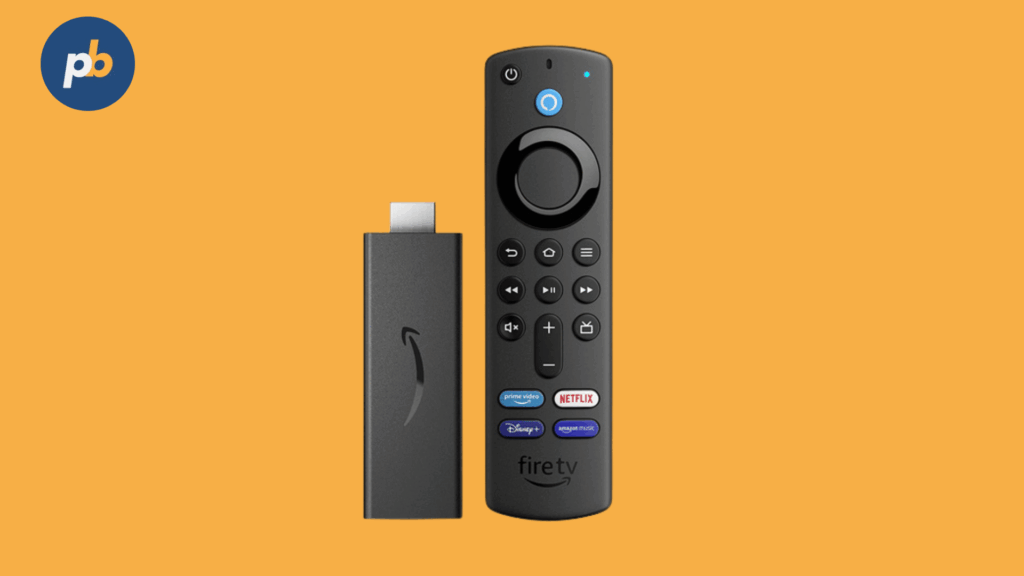
As a compact HDMI device running Fire OS, the Amazon Fire TV Stick works well as a basic player for digital signage by running a native signage app from the Amazon Appstore and rendering playlists to any HDMI display. This role suits pop-ups, classrooms, SMB retail, internal dashboards, and pilot programs where fast procurement, low cost, and simple installation matter more than enterprise kiosk controls.
Where Fire TV Works Well and Where It Does Not include:
- Single-Site Pilots And Pop-Up Installs
- SMB Retail Menus And Promos In Moderate Lighting
- Classrooms, Churches, And Community Boards
- Internal Dashboards In Non-critical Areas
- Temporary Events And Portable Kiosks
- Not: High-Security Kiosks With Strict Lockdown
- Not: Harsh Outdoor/Window Environments Without Proper Displays
- Not: Multi-Output Walls Or Advanced HTML Rendering At Scale
Why Would a Fire TV Stick Be Picked Over a Dedicated Signage Player?
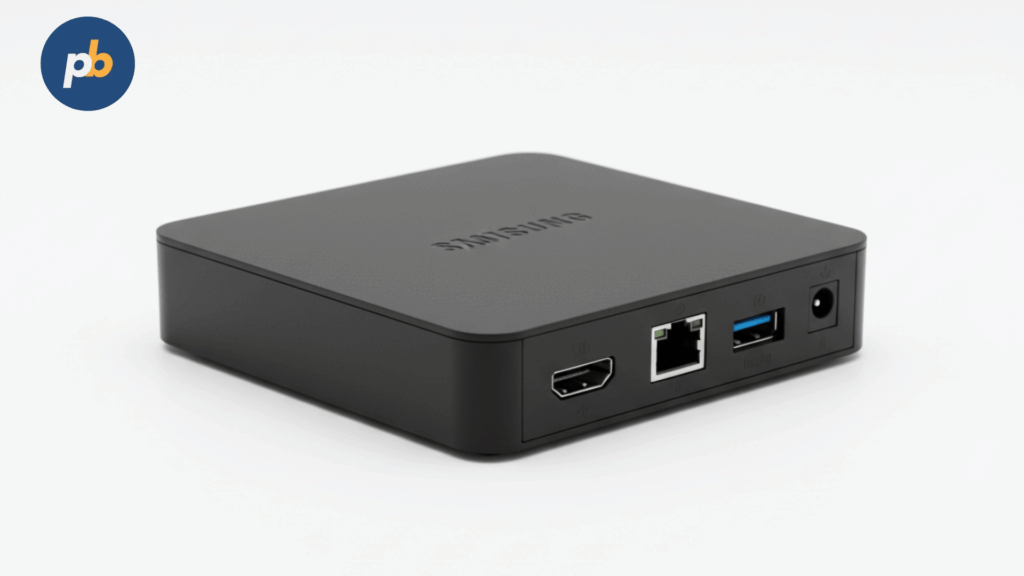
A Fire TV Stick is picked when low price, instant availability, tiny form factor, and HDMI plug-and-play outweigh the limitations of a consumer OS, kiosk depth, and management features. Pros include low cost and easy sourcing; cons include reliance on consumer power management, limited kiosk controls, and Wi-Fi dependence unless an Ethernet adapter is added. Amazon’s official Ethernet Adapter provides 10/100 wired networking across Stick and Cube families, improving stability for signage use.
Table: Fire TV vs Android Box vs Raspberry Pi vs Mini-PC, Cost, Stability, Offline, Management, 4K
| Player Class | Approx. Hardware Cost | Stability & Duty Cycle | Offline Caching | Fleet Management Depth | 4K/HTML Performance | Best Use |
|---|---|---|---|---|---|---|
| Fire TV Stick 4K/Max | Low ($50) | Good for light/medium loads | Yes (CMS-dependent) | Basic (CMS + limited OS) | Good video; modest HTML | Pilots, SMB menus, dashboards |
| Fire TV Cube (3rd Gen) | Low-Mid ($159) | Better CPU; still consumer OS | Yes (CMS-dependent) | Basic (CMS + limited OS) | Stronger 4K/HTML | Richer dashboards, single screens |
| Android TV Box (Pro) | Mid ($100-$200) | Good with right model | Yes | Moderate (EMM/MDM options) | Strong | Medium fleets, HTML widgets |
| Raspberry Pi 4 | Low-Mid $35 (1 GB), $45 (2 GB), $55 (4 GB), $75 (8 GB) | Very good if tuned | Yes | Moderate (open tooling) | Good 1080p; OK 4K | Education, makers, kiosks |
| Intel Mini-PC | Mid-High ($300 -$500) | Excellent/enterprise | Yes | High (MDM, domain) | Excellent | Complex HTML, multi-app |
| SoC Display (Tizen/webOS) | Mid-High ($400 - $1200) | Commercial-grade | Yes | Vendor platform tools | Good | Enterprise fleets, fewer boxes |
Decision Rules for Choosing Fire TV Over Alternatives include:
- Favor Entry Cost And Fast Procurement Over Enterprise Lockdown
- Favor Single-Output 1080p/4K Video And Light HTML Over Complex Apps
- Favor Small Fleets And Non-critical Screens Over Nationwide Networks
- Favor Managed CMS Apps Over Browser-Only Workflows
- Favor Wired Ethernet Adapters Over Pure Wi-Fi For Reliability
Which Amazon Fire TV Models Are Suitable for Signage?
Fire TV Stick 4K Max (2nd gen) and Fire TV Cube (3rd gen) are the most suitable Fire OS devices for signage because they offer stronger CPUs and modern Wi-Fi, and they support wired Ethernet (Max via adapter; Cube via built-in 10/100 port). The 4K Max features 16 GB internal storage, double the standard sticks, useful for offline caches; the Cube adds an octa-core processor and Wi-Fi 6E for heavier content.
Table: Fire TV Model, Max Resolution/Codec, RAM/Storage, Networking, Costs, Best Use
| Model | Max Output / Codecs (Highlights) | RAM / Storage | Networking | Hardware Costs | Best Use |
|---|---|---|---|---|---|
| Fire TV Stick (HD) | 1080p / H.264 | ~1 GB / 8 GB | Wi-Fi; Ethernet via adapter | $39.99 - $49.99 | Simple 1080p loops |
| Fire TV Stick 4K (2026) | 4K HDR / H.265 | ~2 GB / 8 GB | Wi-Fi; Ethernet via adapter | $29 - $40 | Budget 4K menus |
| Fire TV Stick 4K Max (2nd Gen) | 4K HDR / H.265; improved GPU | ~2 GB / 16 GB | Wi-Fi 6E; Ethernet via adapter | $59.99 | 4K with larger caches |
| Amazon Signage Stick | 4K HDR / H.265; octa-core | 2 GB / 16 GB | Wi-Fi 6E; 10/100 Ethernet | $99.99 | Heavier HTML/dashboards |
| Fire TV Cube (3rd Gen) | 4K HDR / H.265; octa-core | 2 GB / 16 GB | Wi-Fi 6E; 10/100 Ethernet | $139 - $149 | Heavier HTML/dashboards |
When Should 1080p Be Chosen vs 4K/4K Max/Cube?
1080p should be chosen for short-range menus with simple motion and minimal text density, while 4K Max should be chosen for denser layouts, large screens, or mixed video-plus-HTML, and Cube should be chosen for heavy HTML widgets, authenticated dashboards, or multi-app switching.
Table: Content Type and Recommended Model
| Content Profile | Recommended Model |
|---|---|
| Simple 1080p Loops And Image Slides | Fire TV Stick (HD) |
| 4K Menus With Moderate Motion | Fire TV Stick 4K |
| 4K Menus Plus HTML Widgets Or Larger Caches | Fire TV Stick 4K Max |
| Data-Dense Dashboards Or Multiple App Integrations | Fire TV Cube (3rd Gen) |
4K Do’s And Don’ts For Fire TV include:
- Prefer H.265/HEVC For 4K Bitrates
- Keep Keyframe Intervals Regular (2 s-4 s)
- Budget GPU/CPU For HTML Overlays Conservatively
- Avoid Unnecessary 8-bit/10-bit Switching Mid-Playlist
- Validate EDID/HDR Handshakes On The Target Display
What Accessories Optimize Fire TV for Signage?

Accessories optimize reliability and serviceability by adding stable networking, clean cabling, and resilient power.
Accessory Checklist For Fire TV Signage include:
- Certified Ethernet Adapter (10/100) For Wired Stability
- Right-Angle HDMI Or Short Extenders For Clearance
- USB OTG Y-Cable (Model-Dependent) For Peripherals
- Cable Ties And Adhesive Mounts For Strain Relief
- VESA-Mounted Shelf Or Velcro Cradle For Sticks
- Small Line-Interactive UPS For Clean Power
Amazon’s Ethernet Adapter provides 10/100 Ethernet and is compatible with major Fire TV models.
How to Set Up a Fire TV Stick as a Signage Player Step-By-Step?
A Fire TV Stick is set up for signage by completing first-run setup, updating Fire OS, installing a native signage app, enabling auto-launch behavior, disabling screensaver/sleep, and preparing remote management and naming.
Quick-Start Checklist For Fire TV Signage include:
- Perform First-Run Setup And Apply Available Updates
- Install The Signage App From Amazon Appstore
- Enable Auto-Launch Or Managed Launcher In The App
- Disable Screensaver And Adjust Sleep/Low-Power Settings
- Connect Wired Ethernet Adapter And Test Throughput
- Set Time Zone, 24-Hour Clock, And Device Name
- Capture A Test Screenshot From The CMS
What Is the Exact Provisioning Flow on Day One?
The exact provisioning flow is a repeatable, ten-step process that takes a device from factory state to controlled playback.
Provisioning Steps For Fire TV Signage include:
- Perform Factory Reset From “My Fire TV”
- Connect To Ethernet (Preferred) Or Secured Wi-Fi
- Sign In With A Limited-Purpose Amazon Account
- Apply Fire OS Updates Before App Installs
- Install The Chosen Signage Player App From Appstore
- Configure Auto-Launch On Boot Within The App/Launcher
- Set Screensaver “Start Time” To “Never” And Disable Sleep Where Available
- Set Time Zone And 24-Hour Clock For Proof-Of-Play Accuracy
- Assign A Human-Readable Device Name In CMS And On Device
- Test Offline Cache, Power-Loss Recovery, And Reboot Behavior
Table: Setting, Where In UI, And Target Value
| Setting | Location | Target |
|---|---|---|
| Network | Settings → Network | Wired (Ethernet) if possible |
| Screensaver | Settings → Display & Sounds → Screensaver | Start Time → Never |
| Sleep/Low Power | Settings → Sleep Timer / Power | Disabled for signage |
| Time | Settings → Preferences → Time Zone | Local time zone; 24-hour clock |
| App Auto-Launch | App/Launcher Settings | Enabled on boot |
Disabling screensaver and selecting “Never” is documented in multiple help resources; Fire TV devices also implement Low Power Mode on sleep. Some models and OS builds retain sleep constraints that require periodic validation.
How to Achieve Kiosk-Style Behavior on Fire TV?
Kiosk-style behavior is achieved by auto-starting into the player app, suppressing UI interruptions, disabling purchases/voice where possible, and using a managed launcher if the CMS provides one; Fire OS does not offer a full enterprise kiosk lock like dedicated platforms, and some models limit auto-launch on boot per vendor notes.
Table: Kiosk Tactic, How, And Caveats
| Tactic | How | Caveats |
|---|---|---|
| Auto-Start App | App setting or managed launcher | Varies by model/OS build |
| Disable Screensaver | Set Start Time → Never | Some sleep behaviors persist |
| Block Purchases | Disable purchasing in Account settings | Not a full kiosk lock |
| Limit Voice | Turn off mic/voice in Privacy settings | Remote mic may remain |
| Hide UI Pop-ups | Keep OS updated; minimize background apps | Not guaranteed on consumer OS |
Things That Cannot Be Fully Locked On Fire OS include:
- System Update Prompts And Occasional OS Notices
- Complete Home-Screen Suppression Without Rooting
- App-Store-Wide Purchase Surfacing In All Contexts
How to Configure Power, HDMI-CEC, and Display Control?
Power and display control are configured by powering the Stick or Cube from the wall adapter (not TV USB), enabling HDMI-CEC to wake the display, confirming display “no signal” behaviors, and scheduling dimming/blackout via the CMS when supported.
Power/CEC Checklist For Fire TV Signage include:
- Use Wall Power Adapters Rated Per Device Specification
- Enable HDMI-CEC To Wake Displays With App Launch
- Validate Display “No Signal” Timeout Behavior
- Pair CMS Schedules To Venue Open/Close Times
- Add Smart PDUs Where Remote Power-Cycle Is Required
Which Digital Signage Software Works Best on Fire TV and How to Choose?
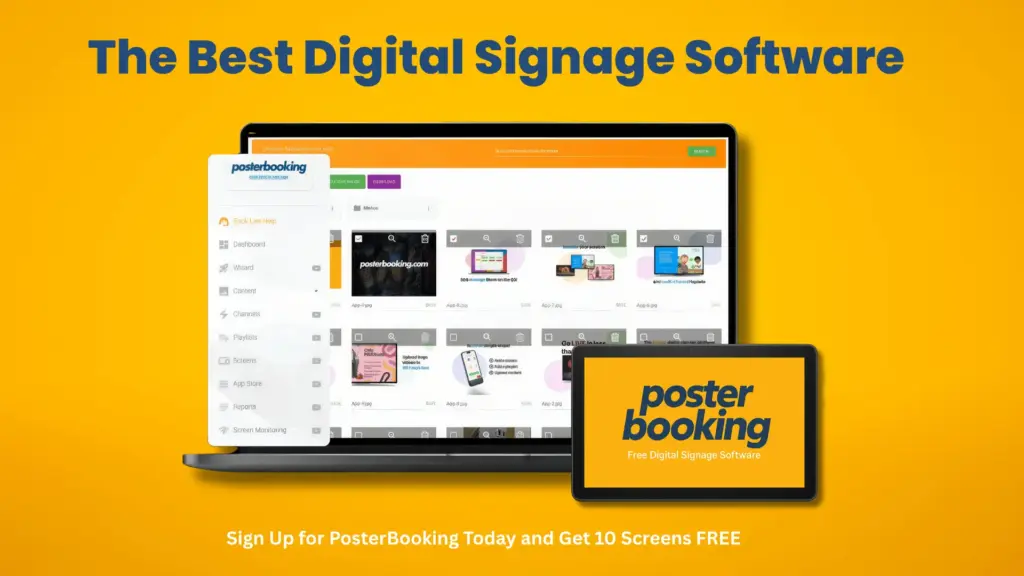
The best Fire TV CMS choice is a platform with a native Fire OS player in the Amazon Appstore, offline caching, remote screenshots/health, dayparting and tag targeting, and light HTML widget support; browser-only playback is discouraged on Fire TV due to kiosk and stability limits.
Multiple vendors publish Fire TV apps, including OptiSigns, PosterBooking, ScreenCloud, Yodeck, Look, NoviSign, and others.
Feature Must-Haves For Fire TV CMS And How To Test include:
- Native Amazon Appstore Player And Version Support
- Offline Caching For Video And Images With Health Proofs
- Remote Screenshots, Reboot, And Player Health Telemetry
- Dayparting, Tag Targeting, And Playlist Rules For Scale
- Light HTML5 Widgets And Authenticated Embeds If Needed
- Auto-Launch On Boot And Screensaver/Sleep Overrides
What Is the Best Fire TV Signage Software for Single-Screen or Startups?
PosterBooking is the best Fire TV signage software for single-screen or startups because it offers a mature Amazon Appstore app, simple onboarding, offline playback, and fast template publishing that suit first deployments with minimal training.
Table: Candidates For Single-Screen/Startup Use
| CMS | Offline Caching | Auto-Launch | Templates | Notes |
|---|---|---|---|---|
| OptiSigns | Yes | Yes | Extensive | Amazon Appstore app |
| PosterBooking | Yes | Yes | Basic | First 10 screens free for 3 months tier |
| ScreenCloud | Yes | Yes | Extensive | Detailed Fire TV guides |
| Yodeck | Yes | Mixed by model | Good | Notes on Fire OS limits |
References: Appstore pages and vendor guides.
Quick Wins For First-Time Fire TV CMS Setups include:
- Standardize Playlists And Templates Before Fielding
- Enable Remote Screenshots And Device Naming Conventions
- Validate Auto-Launch And Sleep Settings On Each Model
- Pre-Cache Heavy Assets On Wired Ethernet
- Capture Commissioning Screenshots For Acceptance
What Is the Best Fire TV Signage Software for Schools And Nonprofits?
ScreenCloud is the best Fire TV signage software for schools and nonprofits because it provides accessible templates, multi-user controls, and widely documented Fire TV install and screensaver steps that align with distributed teams and mixed device pools.
Table: Education-Ready Features
| Feature | ScreenCloud | Yodeck | OptiSigns |
|---|---|---|---|
| Multi-User Roles | Yes | Yes | Yes |
| Calendar/ICS Support | Yes | Yes | Yes |
| Accessibility Defaults | Yes | Yes | Yes |
| Chromebook/TV Mix | Yes | Yes | Yes |
Governance Tips For Education/Nonprofit Fire TV Fleets include:
- Use Limited-Purpose Amazon Accounts Per Site
- Apply Device Naming With Location And Role Fields
- Schedule Content Around School Calendars And Closures
- Enforce Screensaver/Sleep Policies Consistently
- Capture Proof-Of-Play For Grant/Report Compliance
What Is the Best Fire TV Signage Software for QSR Menus And Promos?
OptiSigns is the best Fire TV signage software for QSR menus and promos because it supports daypart schedules, spreadsheet-based menu updates, and multi-screen groups while publishing reliably to Fire TV devices via its Appstore app.
Spec Matrix: Menu Features For Fire TV
| Feature | Requirement |
|---|---|
| Daypart Menus | Breakfast/Lunch/Dinner rules |
| Spreadsheet Prices | CSV/Google Sheets mapping |
| Allergen Callouts | Template fields and labels |
| Screen Groups | Multi-screen sync where needed |
| Window-Facing Considerations | Pair with high-nit displays |
Menu Board Checklist For Fire TV include:
- Validate Font Sizes For Ordering Distance
- Confirm Daypart Changeover Accuracy To The Minute
- Map Data Feeds For Prices And Allergens
- Coordinate With High-Brightness Displays At Windows
- Pre-Cache Media To Minimize Latency
What Is the Best Fire TV Signage Software for Dashboards And KPI TVs?
Yodeck is the best Fire TV signage software for dashboards and KPI TVs because it publishes many authenticated widgets and embeds, documents Fire OS player setup, and provides app compatibility matrices that reduce trial-and-error on data sources.
Table: Dashboard/Embed Capabilities
| Capability | Yodeck | ScreenCloud | OptiSigns |
|---|---|---|---|
| Authenticated Embeds/Tokens | Yes | Yes | Yes |
| HTML5 Widgets | Yes | Yes | Yes |
| Refresh Control | Yes | Yes | Yes |
| Uptime Monitoring | Yes | Yes | Yes |
Security Caveats For Dashboard TVs include:
- Prefer Tokens Or JWT For Embedded Sources
- Avoid Storing User Credentials On Devices
- Use VLANs And Read-Only Accounts For Data Widgets
- Rotate Keys And Audit Access Regularly
- Avoid Browser-Only Loops On Fire TV For Stability
What Is the Best Fire TV Signage Software for Multi-Location Chains?
ScreenCloud is the best Fire TV signage software for multi-location chains because it combines Fire TV deployment guides with enterprise workflows such as approvals, audit logs, device groups, and robust playlist rules at scale. Yodeck and OptiSigns are strong alternates when specific app catalogs or data widgets are decisive.
Table: Enterprise Features For Chains
| Feature | ScreenCloud | Yodeck | OptiSigns |
|---|---|---|---|
| Tag Targeting | Yes | Yes | Yes |
| Approvals & Audit Logs | Yes | Yes | Yes |
| API/Webhooks | Yes | Yes | Yes |
| Device Groups & Roles | Yes | Yes | Yes |
Scale Pitfalls For Fire TV Fleets include:
- Inconsistent Auto-Launch Across OS Builds
- Wi-Fi Congestion And Captive Portal Risks
- Mixed Model Behavior On Screensaver/Sleep
- Limited Kiosk-Depth Compared With Enterprise Players
- Appstore Policy Shifts Affecting Availability
How to Set Up and Manage Amazon Fire Stick for Digital Signage?
To set up an Amazon Fire Stick for digital signage, plug it into the HDMI port of your display, connect it to Wi-Fi, and sign in with your Amazon account. Once set up, you can install a digital signage app to turn the Fire Stick into a signage player.
How to Install Digital Signage Apps on Fire Stick?
To install digital signage apps on a Fire Stick, open the Amazon Appstore on the device, search for your preferred signage app (such as PosterBooking), and download it. Once installed, log in with your account to connect the Fire Stick to your signage dashboard.
How to Configure Fire Stick for Continuous Playback?
To configure a Fire Stick for continuous playback, open your signage app and set playlists or media files to loop. Enable Auto-Start settings where available, so the app launches automatically whenever the Fire Stick is powered on, ensuring uninterrupted playback.
How to Schedule Content on Amazon Fire Stick Digital Signage Apps?
To schedule content on Fire Stick digital signage apps, log in to your signage dashboard, select the Fire Stick device, and upload or assign media. Use the Schedule feature to set start and end times for promotions, menus, or announcements. The content will update automatically on the Fire Stick player.
How to Update Content Remotely on Fire Stick Devices?
To update content remotely on Fire Stick devices, log in to your signage software dashboard from any computer or phone. Select the device, replace or upload new content, and save changes. The Fire Stick will sync over Wi-Fi and display the updated material instantly.
How to Manage Multiple Fire Stick Players Across Locations?
To manage multiple Fire Stick players across locations, register each device under your signage account. Group them by branch or location inside the dashboard, assign playlists to specific groups, and monitor status remotely. This allows centralized management for multi-site signage.
How to Troubleshoot Digital Signage on Fire Stick?
To troubleshoot digital signage on Fire Stick, first check power and Wi-Fi connections. Restart the device if content doesn’t load, and ensure your signage app is updated. If issues persist, clear cache or reinstall the app, then re-sync the device with your signage dashboard.
What Performance And Content Settings Keep Fire TV Playback Smooth?
Smooth playback is maintained by encoding video to H.264/H.265 at appropriate bitrates, keeping keyframes regular, budgeting HTML animation conservatively, optimizing images, and aligning audio policies to venue sound.
Table: Canvas And Recommended Bitrate/Keyframe
| Canvas | Recommended Bitrate | Keyframe Interval |
|---|---|---|
| 1080p/30 | 6-10 Mbps (H.264/H.265) | 2-4 seconds |
| 1080p/60 | 8-12 Mbps (H.265 preferred) | 2 seconds |
| 4K/30 | 15-25 Mbps (H.265) | 2-4 seconds |
| 4K/60 | 25-40 Mbps (H.265) | 2 seconds |
HTML And Motion Budgets For Fire TV include:
- Limit Simultaneous Animations And Heavy Shadows
- Prefer GPU-Friendly Transforms Over Layout Thrash
- Cap Refresh Frequencies For Live Widgets
- Pre-Render Data Visuals Where Possible
- Use Static Fallbacks For Network Timeouts
How to Handle Offline Playback And Bandwidth Limits?
Offline readiness depends on pre-caching assets, setting file size caps, scheduling off-hours sync, using clear fallbacks, and enabling retry logic within the CMS app.
Offline Readiness Checklist For Fire TV include:
- Pre-Cache Playlists On Wired Ethernet
- Enforce Size Caps For Video Assets
- Schedule Overnight Sync Windows
- Provide Offline Fallback Slides And Timers
- Verify Proof-Of-Play Queuing Until Online
Table: Screens × Bitrate And Monthly Data Estimate (Illustrative)
| Screens | Avg Daily Playback (hrs) | Avg Bitrate | Monthly Data |
|---|---|---|---|
| 1 | 12 | 8 Mbps | ~1.3 TB if streaming |
| 10 | 12 | 8 Mbps | ~13 TB if streaming |
| 10 | 12 | Cached | Sync deltas only |
How to Secure And Manage Fire TV Devices at Scale?
Security and management rely on network segmentation, least-privilege Amazon accounts, disabled purchases, limited voice input, controlled firmware update windows, and consistent inventory naming and alert thresholds.
Table: Risk, Mitigation, And Owner
| Risk | Mitigation | Owner |
|---|---|---|
| Purchase/Ad Pop-ups | Disable purchasing; choose kiosk-friendly apps | Admin |
| Wi-Fi Instability | Use Ethernet adapter; improve RF plan | Network |
| Sleep/Screensaver | Set “Never”; verify post-update | Admin |
| Firmware Surprises | Staged updates; cohort testing | Admin |
| Account Loss | Limited-purpose logins; documented recovery | Admin |
Hardening Checklist For Fire TV Signage include:
- Create Limited-Purpose Amazon Accounts Per Site
- Disable Purchases And Voice Where Feasible
- Enforce Ethernet And VLAN Segmentation
- Stage Firmware Updates In Cohorts With Rollback
- Name Devices Consistently And Monitor Heartbeats
What Remote-Management Options Exist for Fire TV?
Remote management options include the CMS’s built-in device manager (screenshots, reboots), optional ADB-over-network for advanced operations, third-party MDM where supported, and smart PDUs for hard power-cycles. Amazon documents enabling ADB debugging and developer options for network access.
Table: Management Method, Scope, And Pros/Cons
| Method | Scope | Pros | Cons |
|---|---|---|---|
| CMS Device Manager | Health, screenshots, reboot | Simple; centralized | App-limited |
| ADB Over Network | Advanced control | Deep visibility | Security risk if exposed |
| Third-Party MDM | Policies, inventory | Fleet hygiene | Varies by vendor support |
| Smart PDU | Power-cycle | Hardware-level fix | Added cost |
What Are the Reliability Limits And How to Mitigate Them?
Reliability limits stem from enclosure heat, under-powering from TV USB ports, Wi-Fi congestion, and OS pop-ups; mitigation includes wall power bricks, Ethernet adapters, ventilation planning, scheduled reboots, and monitoring.
Table: Symptom, Likely Cause, And Fix
| Symptom | Likely Cause | Fix |
|---|---|---|
| Random Reboots | Under-powering from TV USB | Use rated wall power supply |
| Black Screen After Idle | Screensaver/sleep behavior | Set Screensaver → Never |
| Playback Stutter | Wi-Fi interference | Add Ethernet, reduce bitrate |
| Pop-ups Or UI Overlays | Consumer OS prompts | Keep OS/app updated; limit apps |
| HDMI Handshake Issues | EDID/HDCP quirks | Power-cycle chain; test direct |
Weekly/Monthly Maintenance Tasks For Fire TV Fleets include:
- Review Health/Screenshots And Clear Alerts
- Confirm Sleep/Screensaver Policies After Updates
- Inspect Cabling And Strain Relief Behind Displays
- Reboot Cohorts To Clear Residual State
- Validate App Versions And Device Names In CMS
Sleep/Low-Power behavior and screensaver settings are described in Amazon and TechHive help articles; some devices still enter low-power mode after prolonged inactivity.
How Does Fire TV Compare to Other Low-Cost Signage Players?
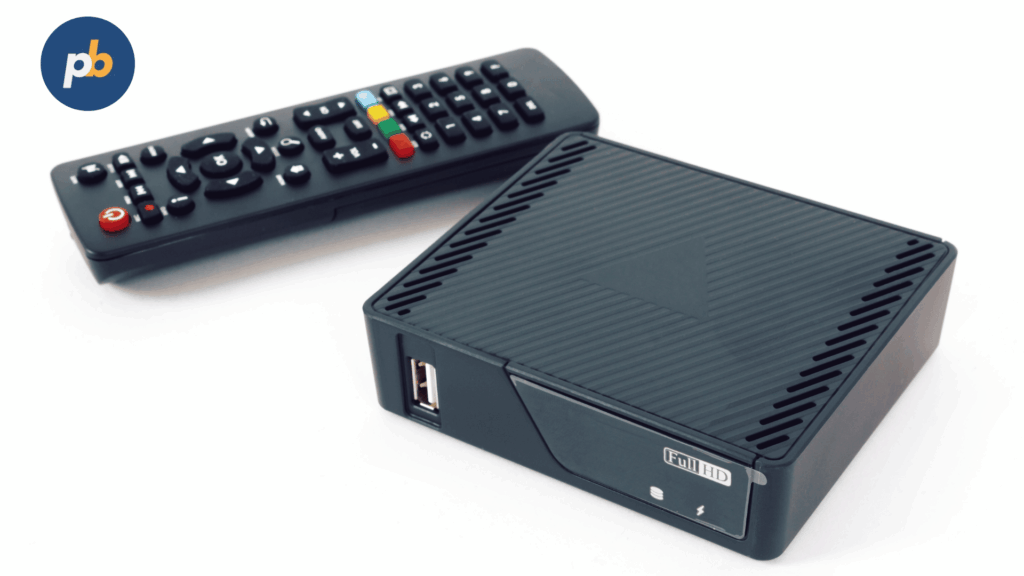
Fire TV compares favorably on price and availability but lags enterprise players on kiosk depth and multi-display capability; Android boxes and mini-PCs offer stronger management and HTML performance, while SoC displays reduce cabling and boxes entirely.
Comparison Table: Approach, 3-Year TCO, Stability, Management, HTML/4K, Kiosk Depth, Best Use
| Approach | 3-Year TCO | Stability | Management | HTML/4K | Kiosk Depth | Best Use |
|---|---|---|---|---|---|---|
| Fire TV Stick | Low | Good (light duty) | Basic (CMS) | Good/4K Max | Limited | Pilots, SMB |
| Fire TV Cube | Low-Mid | Good | Basic | Better 4K/HTML | Limited | Dashboards |
| Android TV Box | Mid | Good | Moderate | Strong | Moderate | Small/medium fleets |
| Raspberry Pi | Low-Mid | Very good | Moderate | Good 1080p | Moderate | Education, kiosks |
| Mini-PC (Intel) | Mid-High | Excellent | High | Excellent | High | Complex HTML, scale |
| SoC Display | Mid-High | Excellent | Vendor tools | Good | High | Enterprise fleets |
“Choose Fire TV If…” And “Avoid Fire TV If…” include:
- Choose Fire TV If Cost, Availability, And Simplicity Dominate
- Choose Fire TV If Single Outputs And Light HTML Are Sufficient
- Avoid Fire TV If Strict Kiosk Controls Are Mandatory
- Avoid Fire TV If Multi-Output Or Advanced HTML Is Required
- Avoid Fire TV If Outdoor Or 24/7 Harsh Duty Is Expected
What Does a Realistic Fire TV Signage Budget Look Like?
A realistic Fire TV signage budget includes the device, Ethernet adapter, cabling/mount odds-and-ends, a small UPS, a CMS license, and modest installation time; a 10-screen mini-fleet scales these costs linearly with minor efficiencies.
Table: Scenario And CapEx/OpEx Breakdown (Illustrative)
| Scenario | Device & Adapter | Mount/Cables | UPS | CMS License | Install Time |
|---|---|---|---|---|---|
| Single 4K Max Screen | $55 | $30 - $50 | $70 - $90 | $5 | 1-2 h |
| Cube Dashboard Screen | $150- $165 | $50-$70 | $100 - $120 | $50 | 1-2 h |
| 10-Screen Mini-Fleet | $550 | $250 - $300 | $400-$600 | $50 | 1-2 h/site |
Cost Levers And Savings Tips For Fire TV Signage include:
- Use Wired Ethernet Adapters To Cut Support Tickets
- Standardize Models And Mounting Hardware For Spares
- Pre-Stage Devices With Profiles And Updates In A Lab
- Rely On CMS Templates To Reduce Creative Hours
- Pair With Energy Schedules And AR Glass On Displays
How to Deploy Fire TV Signage in 90 Days from Pilot to Scale?
A 90-day plan moves from discovery to a 2-week pilot, then hardening and initial scale to 10-20 screens, followed by a review gate that confirms reliable auto-launch, network stability, and content ops.
Milestone Checklist For A 90-Day Fire TV Rollout include:
- Complete Discovery, Goals, And Content Templates
- Run A 1-3 Screen POC With Wired Ethernet
- Harden Sleep/Screensaver And Auto-Launch Settings
- Stage And Commission 10-20 Screens With Screenshots
- Review Uptime, Alerts, And Tune Schedules
Table: Risk, Mitigation, And Owner
| Risk | Mitigation | Owner |
|---|---|---|
| Sleep Resets After Update | Post-update policy check | Admin |
| Wi-Fi Congestion | Move to Ethernet | Network |
| Appstore Changes | Maintain APK/vendor contact | Admin |
| Power Blips | Add UPS and smart PDU | Facilities |
What FAQs Do People Ask About Fire TV for Signage?
Concise Answers For Common Fire TV Signage Questions include:
Can Fire TV Run Offline Reliably?
Yes, if the CMS supports caching and proof-of-play queuing.
Is 1080p Enough Or Is 4K Needed?
1080p is fine for short-range menus and 4K improves dense layouts and large screens.
How To Stop Screensaver And Pop-ups?
Set Screensaver Start Time to “Never” and minimize extra apps; some low-power modes persist by design.
Can The Signage App Auto-Start On Boot?
Often yes, via the CMS app; some models/OS builds limit this behavior.
How To Remote-Reboot A Frozen Player?
Use the CMS reboot command or a smart PDU; ADB over network is optional with proper controls.
Is Ethernet Better Than Wi-Fi Here?
Yes; Amazon’s Ethernet Adapter yields 10/100 wired stability and reduces RF issues.
How Many Devices Before Outgrowing Fire TV?
Beyond dozens of screens with complex HTML or strict kiosk/security needs, step up to commercial players or SoC displays.
How to Pick the Right Fire TV Model?
- Best Overall Fire TV For Signage: Fire TV Stick 4K Max (2nd gen) is the best overall pick for signage because it offers 16 GB storage for larger caches, strong 4K decoding, and Wi-Fi 6E with optional Ethernet for reliable delivery.
- Best Fire TV For Data-Heavy Dashboards: Fire TV Cube (3rd gen) is the best Fire TV for data-heavy dashboards because its octa-core CPU and Wi-Fi 6E, plus a built-in 10/100 Ethernet port, provide headroom and stable networking.
How to Install or Manage Apps on Fire TV?
- Amazon Appstore (Install Signage Apps Remotely Or On-Device): Amazon Appstore pages for OptiSigns, PosterBooking, ScreenCloud, Yodeck, Look, and NoviSign provide native Fire TV players and installation buttons tied to the target device.
- Developer Option, ADB Over Network: Amazon’s developer documentation describes enabling ADB debugging for network access during advanced operations.
Takeaway
The Amazon Fire TV Stick is one of the easiest, most affordable ways to turn any TV into a digital signage player. With a simple setup , plug in, connect to Wi-Fi, and install your preferred signage app , you can launch a network without expensive hardware. Fire TV Sticks are ideal for small businesses, restaurants, gyms, and offices that need a plug-and-play solution with remote management.
PosterBooking pairs perfectly with Fire TV Stick, letting you manage unlimited screens from the cloud, schedule playlists, and update content in real time , all free to start.